



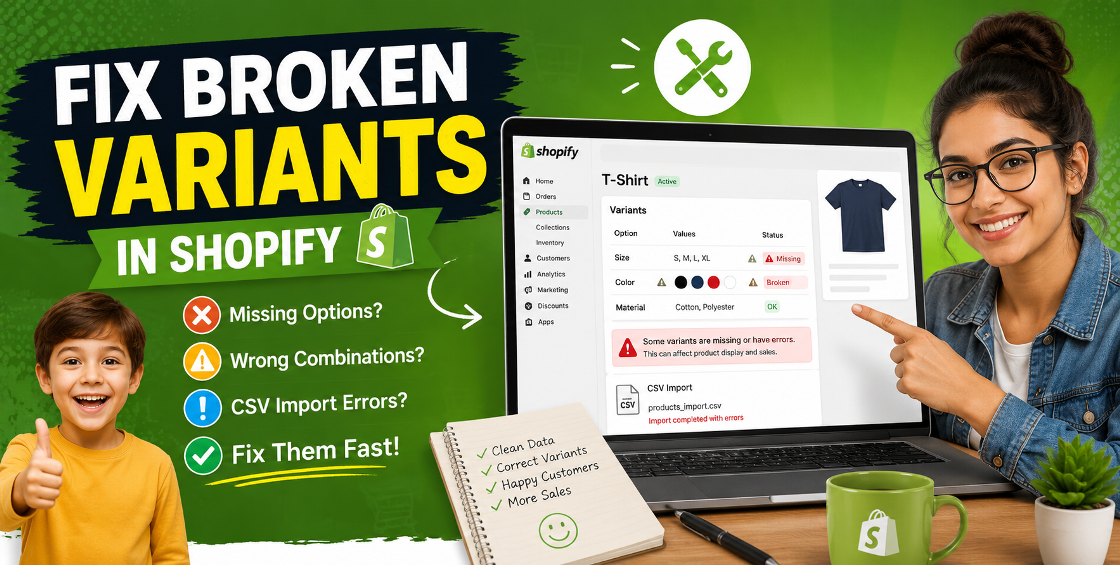
Few things frustrate Shopify store owners more than broken product variants.
One day your products are working perfectly. The next day customers can’t select sizes, color swatches disappear, pricing changes randomly, or entire variant combinations stop showing on the storefront.
We’ve seen this happen after bulk CSV imports, app conflicts, theme customizations, and even routine product updates.
For ecommerce brands managing hundreds or thousands of SKUs, broken Shopify variants don’t just create confusion — they directly impact conversions, ad performance, and customer trust.
A customer who can’t choose the right size or color usually doesn’t contact support. They leave.
In this guide, we’ll break down the real reasons Shopify variants break, how to fix them properly, and what experienced Shopify product management teams do to prevent the issue from happening again.
Shopify’s variant system looks simple from the front end, but behind the scenes it relies heavily on clean product data structure.
Even a small formatting issue can create major problems.
Some of the most common causes include:
We often see stores importing products from Amazon, WooCommerce, Etsy, or supplier feeds where the variant structure doesn’t align properly with Shopify’s format.
That’s where problems begin.
This is one of the most common issues after theme updates or CSV imports.
A product may exist in the Shopify admin, but customers only see one option on the storefront.
Usually this happens because:
In many stores, the issue is actually caused by custom theme edits done months earlier that no one remembers touching.
Check:
Also test the product on a default Shopify theme like Dawn to isolate whether the problem is theme-related or product-data-related.
Sometimes customers select:
Medium + Blue
...but Shopify loads:
Large + Red
This usually points to broken variant mapping.
We often see this after bulk product uploads where the CSV rows were rearranged incorrectly.
Shopify variants rely on structured sequencing. If option relationships are mismatched during import, the storefront starts pulling incorrect combinations.
Carefully review:
Even one misplaced row in a CSV can break hundreds of products.
For large catalogs, bulk auditing the CSV before upload is critical.
A surprisingly common issue.
Store owners upload products successfully, but some sizes or colors disappear entirely.
In most cases:
Remember:
Shopify allows up to 100 variants per product.
If your supplier feed exceeds that limit, Shopify may silently reject combinations.
This is especially common in fashion, furniture, and automotive catalogs.
Before importing:
These inconsistencies create duplicate or broken variants fast.
Customers click “Black” but still see the red product image.
This usually happens because:
We see this often after migration projects from Magento or WooCommerce.
Instead of editing variants manually one by one, we typically:
For larger stores, manual fixing becomes risky and time-consuming.
Many merchants don’t realize apps can interfere with product options.
Especially:
Some apps inject scripts directly into product templates.
When multiple apps modify the same variant selectors, conflicts happen.
We worked on a fashion store where:
...were all trying to control variant selection simultaneously.
Result:
Removing one conflicting script solved the issue immediately.
Start by exporting affected products.
Check for:
This alone often reveals the issue.
Switch temporarily to a Shopify default theme.
If variants work there:
This saves hours of guessing.
Many variant problems come from app conflicts.
Disable:
Then test product functionality again.
Sometimes repairing broken variants manually creates more problems.
In severe cases, rebuilding variants entirely is faster and cleaner.
This includes:
After managing large Shopify catalogs, we’ve noticed a few patterns.
Shopify imports may say “Successful” even when:
Always inspect products after import.
Never trust the import summary alone.
One inconsistent naming format can create catalog chaos.
For example:
These should follow one standard naming structure across the store.
Consistency improves:
Before large imports:
We’ve seen stores accidentally overwrite thousands of variants with incorrect supplier feeds.
Recovery becomes difficult without backups.
Changes should always be tested first.
Especially on:
A variant selector that works on desktop may break completely on mobile.
Always test:
Supplier feeds are rarely Shopify-ready.
Most contain:
Cleaning product data before upload prevents major issues later.
If your store has:
...then variant problems can become expensive fast.
Broken variants affect:
Experienced Shopify catalog teams can usually diagnose the issue much faster because they’ve already seen the same patterns across different stores and industries.
Broken Shopify variants are more than a technical inconvenience.
They directly impact sales, customer experience, and operational efficiency.
The good news is most variant issues are fixable once the root cause is identified properly.
Whether the issue comes from CSV imports, app conflicts, theme code, or inconsistent product data, the key is approaching the problem systematically instead of patching issues randomly.
Clean product structure, consistent variant management, and proper testing make a massive difference in long-term Shopify store stability.


Our Trusted Clients
















Our goal is to help our companies maintain achieve best class positions their respective industries & our team works occur that pleasures have to be repudiated.

Copyright © MyShopifyExpert . All rights reserved.